
The workbook is called Sales_2026_FINAL_v7_NEW. Three people have edited it, one of them left in June, and a lookup on the stock tab quietly broke in September. Everyone in the office knows the business has outgrown Excel. What stops the change is rarely the price of software. It is the fear of the migration itself: weeks of double entry, opening balances that do not agree, and a team that quietly keeps using the old sheets.
This is a playbook for the move itself, written for owners and finance managers who want to move from Excel to ERP without a crisis. If you are still deciding whether to move at all, our comparison of Excel vs ERP software covers the case for and against. Here we assume you have decided, and we show the order of work, the checks that catch mistakes early, and what to expect on timing.
Move from Excel to ERP: the playbook at a glance
Migrations go wrong in predictable places: data that was never cleaned, opening balances nobody reconciled, and a go-live date chosen by hope. The ten steps below deal with those in order. Each is explained in its own section.
- Audit your spreadsheets. List every sheet, who owns it, and what it feeds.
- Decide what to bring across. Master data and balances, not every old transaction.
- Clean the data. Duplicates, codes, units, TRNs and dates.
- Set the chart of accounts and opening balances. A trial balance at the cut-over date that agrees with your lists.
- Import customers, vendors, products and people. In a sensible order, in Excel templates.
- Pilot with real documents. A small group raises genuine invoices, bills and deliveries.
- Run in parallel for one cycle. Compare old and new figures at a month-end.
- Choose the cut-over date. Ideally a period boundary, with the old sheets frozen.
- Train each team. Short, role-based sessions, with a named helper per team.
- Review after go-live. Fix what looks odd while the first month is fresh.
Audit your spreadsheets first
Most companies discover during the audit that they have more spreadsheets than they thought. There is the official sales register, but also the salesperson's own price sheet, the warehouse supervisor's stock tab, the cheque list on the accountant's desktop and the leave tracker HR keeps because the official one is out of date. Each of these is a small system with rules nobody wrote down.
Walk round the office and ask each person which files they open every day, and what they do when a number looks wrong. You are not judging anybody; you are mapping what the new system has to replace.
| Sheet | Owner | What it does | Feeds | Decision |
|---|---|---|---|---|
| Customer list | Sales admin | Names, contacts, payment terms | Quotations and invoices | Clean, then import |
| Price list | Sales manager | Prices by customer type | Quotations | Rebuild as price lists in the system |
| Stock sheet | Warehouse supervisor | Quantity by product and location | Sales and purchasing | Recount, then import opening stock |
| Receivables list | Accountant | Open invoices by customer | Collections and cash forecast | Import open invoices as opening balances |
| Cheque list | Accountant | Post-dated cheques received and issued | Bank deposits | Re-enter outstanding cheques |
| VAT workbook | Finance manager | Quarterly VAT 201 workings | FTA return | Replace; keep as archive |
| Payroll sheet | HR | Salaries, deductions, leave | WPS file and bank | Import employees, salaries and balances |
| Old sales history | Finance | Past invoices | Reports only | Archive read-only |
The last column is the important one. For every file, decide whether to import it, rebuild it, or archive it. A file without a decision is where the surprises hide.
Decide what to bring across
The temptation is to carry everything. Resist it. Importing three years of old invoices line by line adds weeks, adds errors, and rarely changes a decision. A better rule is to bring three things.
Master data
Customers, vendors, products and employees. These are the lists every new document will point at, so they need to be right.
Open items and balances
Open customer invoices, open vendor bills, bank balances, stock quantities and values, fixed assets and the other balance sheet lines, all as at the cut-over date. These are what the new books must start with.
Just enough history
Last year's totals by month, if you want comparisons, and maybe the sales history of your top customers. Everything else stays in the archive. Keep the old files read-only, because the FTA expects you to retain your records for five years, and because someone will ask about an old invoice in March.
A word on timing: the more history you bring, the later your go-live. If you are tempted to bring a lot, ask what decision it will change. Most of the time the honest answer is none.
Clean the data before it goes in
Cleaning is the unglamorous step that decides the rest. A system does exactly what the data says, so a customer entered twice stays a customer entered twice, with the credit position split between them. Cleaning in Excel takes minutes per fix. Cleaning in the live system takes a form, a conversation and a journal entry.
| Item | Typical problem | What to do |
|---|---|---|
| Duplicate customers and vendors | The same company under two spellings, such as a trading name and a full licence name | Merge to one record; keep the licence name; note the old name in a remark |
| TRN | Missing or mistyped; a UAE TRN is 15 digits | Check against the supplier's or customer's tax invoice; fill every VAT-registered party |
| Payment terms | Terms in free text, such as "30 days" in some rows and "Net 30" in others | Standardise to a short list: cash, Net 15, Net 30 and so on |
| Product codes | Two products sharing a code, or one product with three codes | One unique code per product; retire the spares |
| Units of measure | Pieces, boxes and cartons mixed within one column | Pick one base unit per product and note how conversions work |
| VAT treatment | Products with no clear standard, zero-rated or exempt marker | Decide per product with your accountant; do not leave it blank |
| Opening stock | Quantities from the sheet do not match the shelf; negative stock rows | Count, correct, then import counted quantities |
| Dates and numbers | Day-month order confusion; numbers stored as text; merged cells | One date format; convert text to numbers; remove merged cells and blank rows |
| Currency | Foreign amounts without an exchange rate or currency code | Add a currency column; note the rate for open foreign balances |
| Inactive records | Customers and products unused for years | Mark inactive or leave out of the import |
| Employee records | Names spelled differently from official documents; missing joining dates; stale leave balances | Match to passports and contracts; confirm joining dates and bank details; update leave balances at the cut-over date |
Do the cleaning in one master copy of each list, with one person responsible, and freeze it on a stated day. Edits that happen in somebody else's copy after that day are the main cause of "the import missed a customer".
Chart of accounts and opening balances
Opening balances are the figures your new books start with, as at the last day before you go live. Get them wrong and every report afterwards is wrong by the same amount, and nobody can say why. The rule is simple: the opening trial balance must balance, and each balance must agree with a list you can point to.
Start with the chart of accounts. Keep it as simple as your reporting allows, and map your old accounts to the new ones. In Nashora, our team configures your chart of accounts, VAT, branches, users and roles during setup, and opening balances can be imported from Excel.
Here is an illustrative opening trial balance in AED. All figures are invented for the example.
| Account | Debit | Credit |
|---|---|---|
| Cash and bank | 180,000 | |
| Accounts receivable | 320,000 | |
| Stock | 410,000 | |
| Fixed assets (net) | 250,000 | |
| Accounts payable | 280,000 | |
| VAT payable | 35,000 | |
| Bank loan | 200,000 | |
| Share capital | 400,000 | |
| Retained earnings | 245,000 | |
| Total | 1,160,000 | 1,160,000 |
Check the sums as the finance manager would. Debits: 180,000 plus 320,000 plus 410,000 plus 250,000 is 1,160,000. Credits: 280,000 plus 35,000 plus 200,000 plus 400,000 plus 245,000 is also 1,160,000. The books balance, which is necessary but not enough. Now compare each control account with the underlying list.
| Control account | Opening balance | Supporting list total | Difference | Likely cause |
|---|---|---|---|---|
| Cash and bank | 180,000 | 180,000 (bank statements) | 0 | None; reconciled |
| Accounts receivable | 320,000 | 318,400 (open invoices) | 1,600 | An unapplied customer receipt or a credit note missing from the list |
| Stock | 410,000 | 407,250 (counted stock at cost) | 2,750 | Items valued from an old price, or a count not yet booked |
| Accounts payable | 280,000 | 280,000 (open bills) | 0 | None; agrees |
The receivables difference is 320,000 minus 318,400, which is 1,600, and the stock difference is 410,000 minus 407,250, which is 2,750. Neither is large, but both would otherwise travel into the new system unexplained. Chase each difference down to its cause, correct the list or the ledger, and only then import. Ten minutes spent on a difference now saves a month-end hunt later.
For receivables and payables, import open items invoice by invoice rather than a single lump, so that aging, statements and receipts work properly from day one. Our guide to accounts receivable and payable explains why allocation and aging matter.
Import customers, vendors and products
Once the lists are clean, importing is the quick part. Import in an order that respects dependencies: the chart of accounts first, then customers and vendors, then products, then opening balances and opening stock. Do a small trial import of ten rows, look at the result in the system, and only then load the rest.
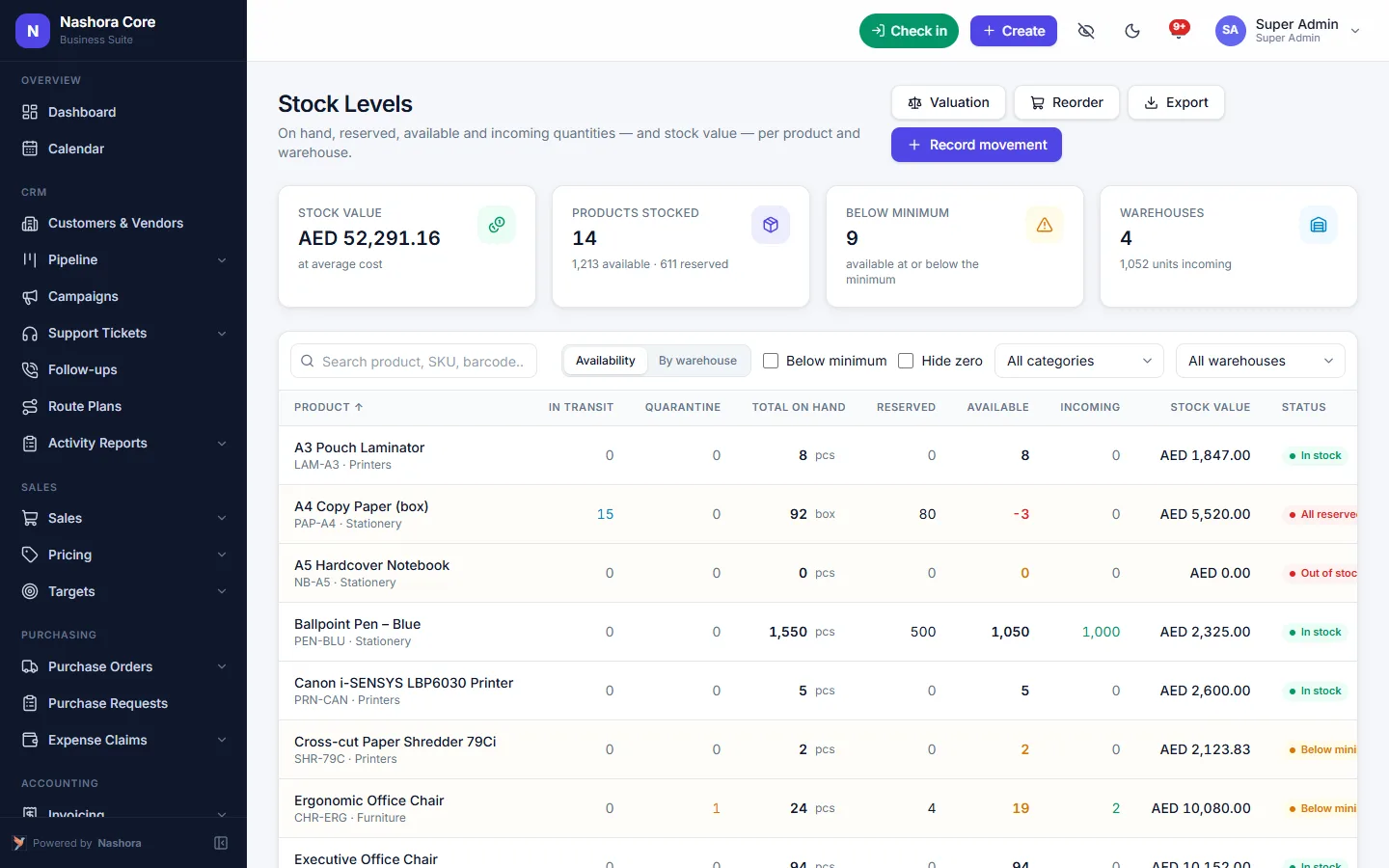
In Nashora, customers, vendors, products and opening balances can be imported from Excel, and our team helps with the import during setup. After the import, open the stock levels screen and compare it with your count. The screenshot below shows stock levels with sample products: on-hand, reserved, available and incoming quantities and stock value per product and warehouse, with filters for warehouse and category. If a number looks wrong here it is far easier to fix now than after a month of deliveries.
Check a handful of records by hand rather than trusting the file. Open five customers with payment terms and a TRN, five products with units and VAT treatment, and five open invoices, and compare each against the original sheet. If all fifteen agree, the import is probably good.
Import employees, leave balances and salaries
If you are moving payroll too, people data deserves its own pass, because errors here show up in somebody's pay. Nashora can import employees, attendance, leave balances and salaries from Excel, and the team helps with the import during setup, so you are not retyping a year of records by hand before the first payroll run.
Before the import, confirm the details that drive the first run: full names as in official documents, joining dates (which drive leave accrual and end-of-service gratuity), salary components, bank details for the salary transfer and current leave balances at the cut-over date. For the WPS side, see our guide to employee payroll and WPS in the UAE and the HR and payroll software page.
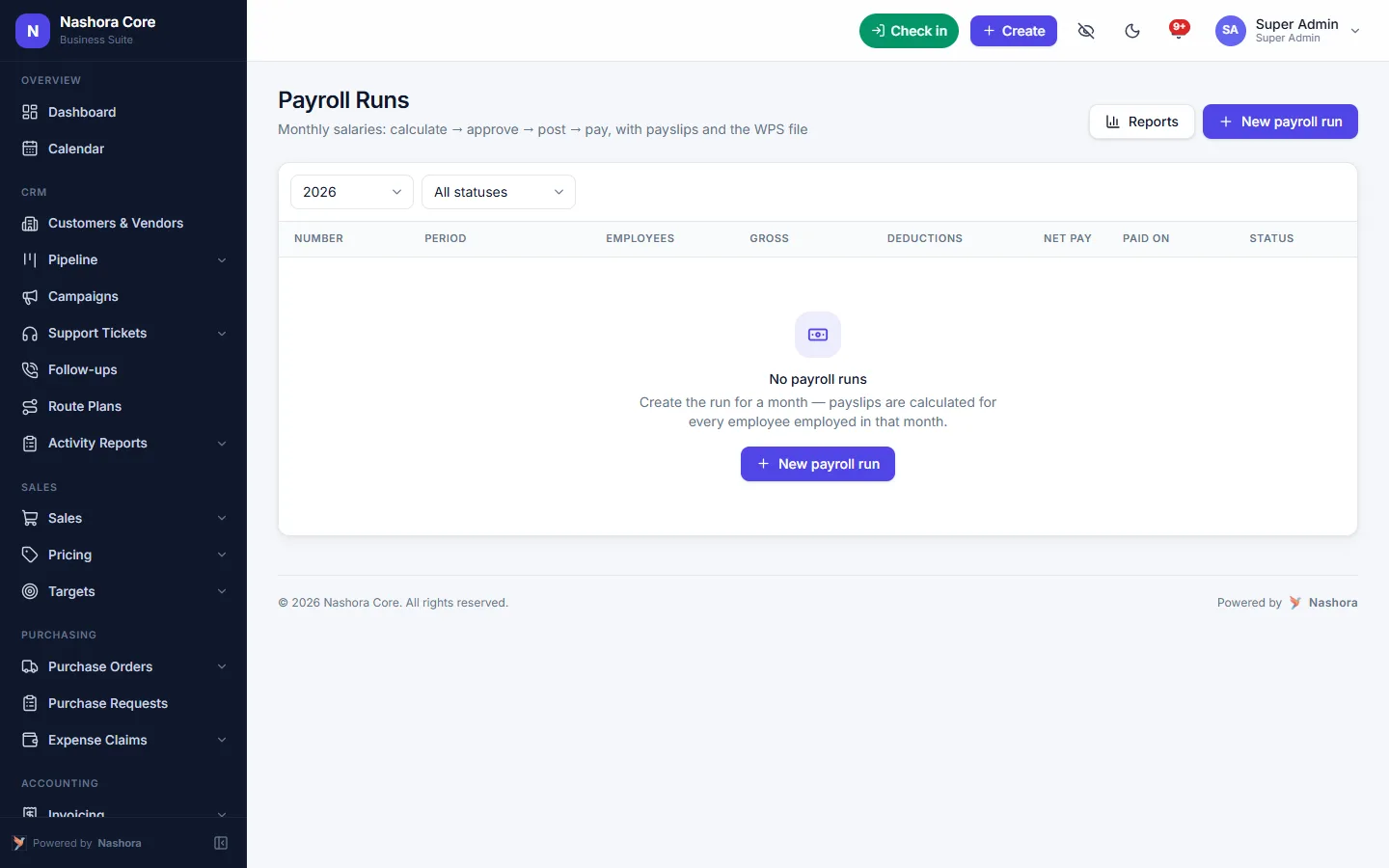
The screen below is the payroll runs page, which describes the monthly cycle: calculate, approve, post, pay, with payslips and the WPS file. It is empty in the screenshot because no run has been created yet, which is exactly where a new company starts.
Pilot and parallel run
A pilot is the first time real documents go through the new system, by a small group who will tell you what is confusing. A parallel run is a second pass: old and new systems run side by side for one cycle, and you compare the results. Together they are the best insurance in the playbook.
The pilot
Pick three or four people from different teams: one from finance, one from sales or purchasing, one from the warehouse and, if payroll is in scope, one from HR. Have them raise genuine invoices, bills, deliveries and leave requests for a week or two. Note every question they ask. Each question is either a training gap or a set-up mistake, and both are cheaper to fix now.
The parallel run
Run the old and new systems side by side for one month-end if you can. At the end, compare the numbers that matter:
- Trial balance, line by line, for the accounts that moved.
- Receivables and payables totals, and aging by customer and supplier.
- Stock quantity and value by warehouse.
- VAT totals, output and input, for the period.
- If payroll is in scope, net pay per employee. Suppose the old sheet says AED 118,450 in total and the system says AED 118,200. The AED 250 gap is one overtime line the sheet rounded differently, found by comparing employee by employee.
Be honest about the cost: a parallel run means double entry for a while, which is tiring. For a small company with a simple process, a short pilot may be enough, and the decision depends on how bad a mistake would be. For payroll and VAT, we would not skip the comparison.
Choose the cut-over date and train the team
The cut-over date is the day the old sheets stop and the new system starts. Choose it deliberately.
Pick a boundary
The cleanest dates are the first day of a month, and better still the first day of a VAT period, so a single return is never split between two systems. For the books, opening balances are as at the last day of the previous period. If your fiscal year starts on 1 January, a 1 January go-live gives a very clean year of records, though few people can wait that long.
Freeze the old sheets
On the cut-over date, make the old files read-only and save a copy in a safe place. If someone needs an old record, they read it, they do not edit it. Shadow spreadsheets that keep running alongside the new system are the most common reason a migration quietly fails.
Train by role
Short sessions for finance, sales, the warehouse and HR work better than one long session for everyone. Give each team one named helper who can answer first questions. In Nashora, help mode explains each screen, and a built-in tutorial walks through examples, so the helper is not alone. We also give each team short training as part of setup.
How long does the move take?
Honestly, it depends on three things: how many modules you are switching on, how much data you bring, and how quickly your own people can answer questions and clean their lists. Nashora setups usually go live within days to a few weeks, and we do not promise more than that, because a messy customer list or a stock count that has to be redone can move the date.
| Phase | What happens | What speeds it up | What slows it down |
|---|---|---|---|
| Audit and decisions | List sheets, decide import, rebuild or archive | One owner who can decide | Nobody owns the decision |
| Data cleaning | Fix duplicates, codes, units, TRNs and dates | One master copy per list | Many local copies of the same list |
| Setup | Company, VAT, chart of accounts, branches, users and roles configured | Clear role list and account mapping | Changing the structure halfway |
| Import | Customers, vendors, products, balances and employees loaded from Excel | Clean sheets in the templates | Text-formatted numbers, merged cells, blanks |
| Opening balances and counts | Trial balance agreed with the lists; stock counted | Counting done before the import | Counting after the import |
| Pilot and parallel run | Real documents; old and new compared | Pilot users with time set aside | Pilot users who are too busy |
| Training and go-live | Role-based sessions; cut-over date | One helper per team | Training squeezed into month-end |
If you want the shortest realistic path, start with accounting, VAT and invoices from the Starter plan and add other modules later. Switching on every module at once is possible, but it lengthens the project. Plans are on the pricing page.
Risks in an Excel-to-ERP move, and how to reduce them
| Risk | Early sign | What to do |
|---|---|---|
| Opening balances do not agree with the lists | Control-account differences you cannot explain | Reconcile each balance to a list before import; investigate every difference |
| Dirty master data | Duplicates and blanks in the first test import | Clean in one master copy; run a small trial import first |
| Staff keep using Excel | New spreadsheets appearing after go-live | Freeze old files; ask each person what the sheet does that the system does not |
| Too much history imported | The plan grows and go-live moves | Import balances and open items; archive the rest read-only |
| Stock count out of date | Negative or odd quantities after the first deliveries | Count before the cut-over; run cycle counts in the first weeks |
| VAT period split between two systems | Go-live in the middle of a return period | Choose a period boundary; or agree a clear cut-off for the return |
| Permissions too loose at launch | Everyone has full access to everything | Design roles first; grant own, team, branch or all access deliberately |
| Key person unavailable | Questions waiting for days | Name a deputy for each list and each decision |
The pattern behind most of these is the same: a decision postponed becomes a problem later. Make the decisions in the audit step, write them down, and the rest of the project is mostly following the list.
After go-live: the first review
The first month-end on the new system is the real test. Run the routine you would normally run: reconcile the bank, review receivables and payables aging, check stock valuation against the books, review the VAT return before filing and, if payroll is in scope, run payroll and check the WPS file.
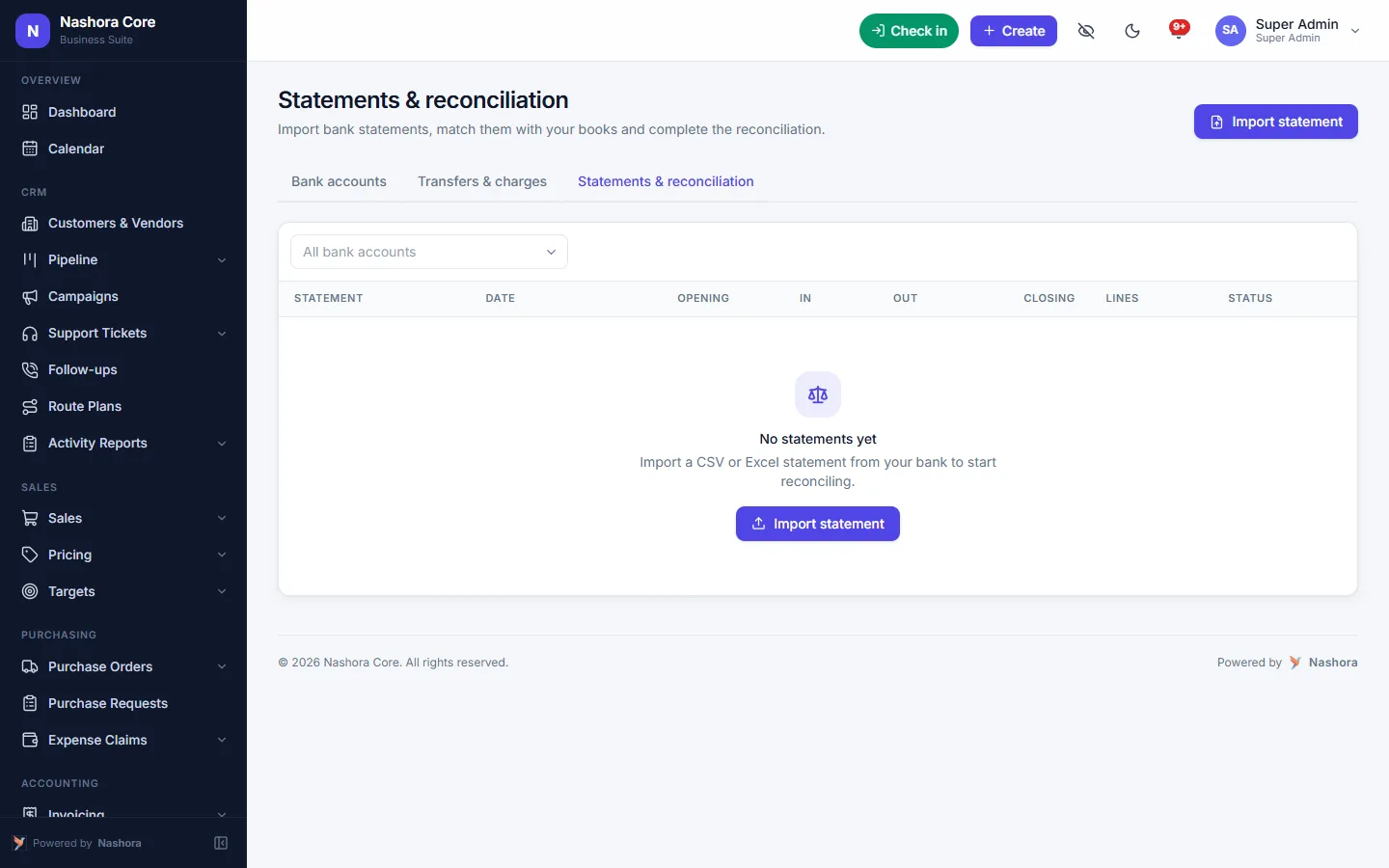
The screenshot below is the bank statements and reconciliation page, where you import a statement from your bank as CSV or Excel and match it against the books. Do this early, because an unmatched line in the first month is usually a missing opening item rather than a new problem.
Hold a short review meeting after the first month with the people who use the system. Ask what they still do outside it, what confuses them and what they would change. Fix the top three items and set the date for the next review. Then, only then, switch on the next module.
What Nashora does to help you move
These are the parts of the move that Nashora covers, from our public pages, so you can compare them with your own plan.
- Excel import. Customers, vendors, products and opening balances can be imported from Excel. If you use HR and payroll, employees, attendance, leave balances and salaries can be imported too, and machines without a network can have their punch log imported.
- Setup help. We configure your company, VAT, chart of accounts, branches, users and roles, and help with the import during setup.
- Training. Short training for each team, plus help mode on every screen and a built-in tutorial with examples.
- Browser-based. Nothing to install on desktop, tablet or phone, so the pilot group can start without IT work.
- Controls from day one. Drafts change nothing until posted, posted documents are locked, fiscal periods can be closed with a period lock and an audit log records every change.
- Timeline. Most companies go live within days to a few weeks, depending on the modules and the amount of data.
On cost, the one-time installation fee on the pricing page covers installing and setting up your company and training your team; data import is included on Business, and payroll and WPS setup on Complete. The fee is paid in the first year only, and prices exclude 5% VAT. For the module detail, see the accounting and VAT software page and the features list.
What we do not claim: there is no promise on an exact number of days, and we do not describe an importer for years of old transactions. If you need old history inside the system, ask us in a demo what is realistic for your data.
Moving from Excel to ERP in the UAE
A few UAE points belong in the plan. Records have to be kept for five years, so archive your old workbooks properly rather than deleting them. Every VAT-registered customer and vendor should have a correct TRN before you import, because tax invoices depend on it. Choose a cut-over at a VAT period boundary where you can, so your VAT 201 return comes from one system. For payroll, make sure employee data is accurate before the first WPS run, and remember that gratuity depends on service length, so joining dates matter. Corporate tax at 9% makes clean opening balances at the start of a financial year worth the wait if you are not in a hurry. Free zone and mainland companies can be treated differently, so check yours with your adviser.
We are based in Al Nahda, Sharjah, and Nashora serves businesses across Dubai, Sharjah, Abu Dhabi, Ajman, Ras Al Khaimah, Fujairah, Umm Al Quwain and Al Ain. Because it runs in the browser, teams in different emirates can be trained and can pilot at the same time. If you run several branches, our guide to managing multiple branches in one ERP covers roles and warehouses for the set-up.
What to do next
- List your spreadsheets. Write down every file, its owner and what it feeds, and mark each import, rebuild or archive.
- Name the owners. One person per list for cleaning, one for opening balances and one for the cut-over decision.
- Clean one list this week. Start with customers or products, using the checklist above, and see how long it really takes.
- Pick a cut-over window. The first day of a month or VAT period that gives you time for a pilot.
- Talk to us with your lists in hand. Book a free demo, bring a sample of your customer or product sheet, and we will show how the import and opening balances would work on it. The FAQ covers setup and pricing, or contact us directly.